> ## Documentation Index
> Fetch the complete documentation index at: https://trunk-4cab4936-test-collections-setup-instructions.mintlify.site/llms.txt
> Use this file to discover all available pages before exploring further.
# Robot Framework
> A guide for generating Trunk-compatible test reports for Robot Framework
You can automatically [detect and manage flaky tests](../../detection/) in your projects running tests with Robot by integrating with Trunk. This document explains how to configure Robot to output JUnit XML reports that can be uploaded to Trunk for analysis.
## Setup steps
Work through the steps below in order. Once you've finished the last one, you'll be ready to move on to [configure uploads in CI](../ci-providers/).
Generate a compatible test report} />
Configure the report file path or glob} />
Disable retries for better detection accuracy} />
Test uploads locally} />
## Generating Reports
Trunk detects flaky tests by analyzing test results automatically uploaded from your CI jobs. You can do this by generating Trunk-compatible XML reports from your test runs.
To output compatible reports, add the `--xunit` argument to your `robot` command:
```shell theme={null}
robot --xunit=junit.xml TestSuite.robot
```
### Report File Path
The JUnit report will be written to the location specified by the `--xunit` argument. In the example above, it would be at `./junit.xml`.
### Disable Retries
You need to disable automatic retries if you previously enabled them. Retries compromise the accurate detection of flaky tests. You should disable them and prefer using the [Quarantine](../../quarantining/) feature to mitigate the negative impact of Flaky Tests.
Omit the [`--rerunfailed`](https://docs.robotframework.org/docs/flaky_tests#re-execute-failed-tests-and-merge-results) flag and remove any [RetryFailed Listeners](https://docs.robotframework.org/docs/flaky_tests#retryfailed-listener) previously configured to run as part of your CI pipeline to disable retries.
## Try It Locally
### The Validate Command
You can validate your test reports using the [Trunk Analytics CLI](../../reference/cli-reference). If you don't have it installed already, you can install and run the `validate` command like this:
```bash Linux (x64) theme={null}
SKU="trunk-analytics-cli-x86_64-unknown-linux.tar.gz"
curl -fL --retry 3 \
"https://github.com/trunk-io/analytics-cli/releases/latest/download/${SKU}" \
| tar -xz
chmod +x trunk-analytics-cli
./trunk-analytics-cli validate --junit-paths "./junit.xml"
```
```bash Linux (arm64) theme={null}
SKU="trunk-analytics-cli-aarch64-unknown-linux.tar.gz"
curl -fL --retry 3 \
"https://github.com/trunk-io/analytics-cli/releases/latest/download/${SKU}" \
| tar -xz
chmod +x trunk-analytics-cli
./trunk-analytics-cli validate --junit-paths "./junit.xml"
```
```bash macOS (arm64) theme={null}
SKU="trunk-analytics-cli-aarch64-apple-darwin.tar.gz"
curl -fL --retry 3 \
"https://github.com/trunk-io/analytics-cli/releases/latest/download/${SKU}" \
| tar -xz
chmod +x trunk-analytics-cli
./trunk-analytics-cli validate --junit-paths "./junit.xml"
```
```bash macOS (x64) theme={null}
SKU="trunk-analytics-cli-x86_64-apple-darwin.tar.gz"
curl -fL --retry 3 \
"https://github.com/trunk-io/analytics-cli/releases/latest/download/${SKU}" \
| tar -xz
chmod +x trunk-analytics-cli
./trunk-analytics-cli validate --junit-paths "./junit.xml"
```
**This will not upload anything to Trunk**. To improve detection accuracy, you should **address all errors and warnings** before proceeding to the next steps.
### Test Upload
Before modifying your CI jobs to automatically upload test results to Trunk, try uploading a single test run manually.
You make an upload to Trunk using the following command:
```sh theme={null}
./trunk-analytics-cli upload --junit-paths "./junit.xml" \
--org-url-slug \
--test-collection-id \
--token
```
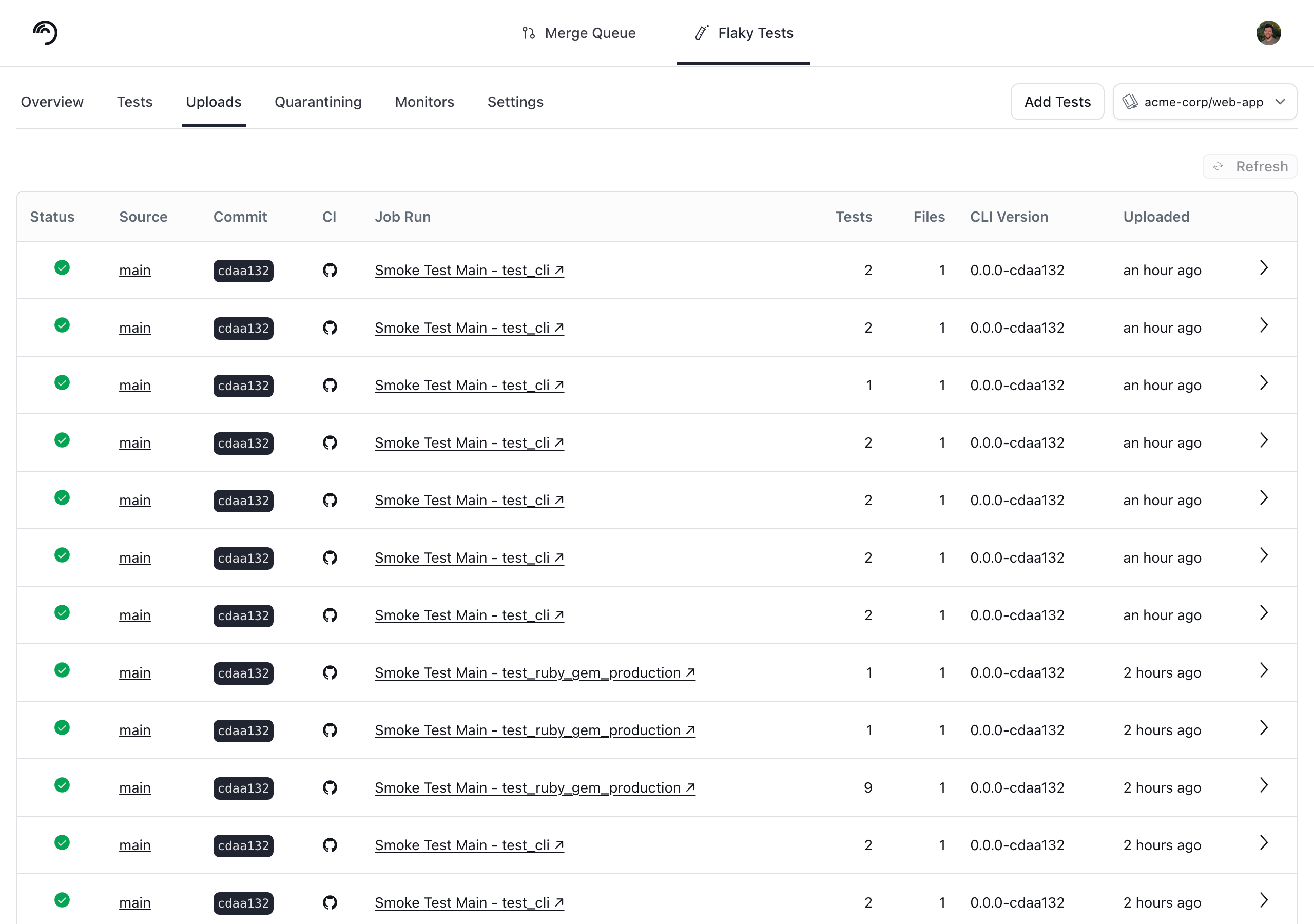
You can find your Trunk organization slug and token in the settings or by following these [instructions](/flaky-tests/get-started/ci-providers/otherci#id-1.-store-a-trunk_token-secret-in-your-ci-system). The collection ID identifies the [test collection](/flaky-tests/get-started/test-collections) the results belong to, and you copy it from that collection in the Trunk app. After your upload, you can verify that Trunk has received and processed it successfully in the **Uploads** tab. Warnings will be displayed if the report has issues.
 ## Next Steps
Configure your CI to upload test runs to Trunk. Find the guides for your CI framework below:
## Next Steps
Configure your CI to upload test runs to Trunk. Find the guides for your CI framework below: